
Blog
Custom AI Agents in Microsoft Word?
If you are a Microsoft Word user then you have likely noticed the advent of Copilot dialogues appearing in the user interface. For instance offering you to “Describe what you’d like to draft with Copilot“. There are some global regional and license exceptions but we can attest to Canadian clients with Microsoft licenses having this feature available both in Mac/Windows clients and the browser. You may have experimented with the Copilot agent, or become an avid user, but have you pondered more granular control on this agent? What if you could interact with a custom agent in that same panel that is trained for specific tasks relating to your work? This is something we have been recently exploring at DMS Group.
Exploring Word’s Copilot snap-in
The included M365 Copilot agent displays a button bar at the top of its interface that allows you to direct it at ‘work’ or ‘web’ (see below). This setting controls where Copilot is allowed to look for grounding information when it generates answers. ‘Web’ setting is basically public internet sites and ‘Work’ enables access to your organization’s Microsoft 365 data that you personally have permission to access.

Adding in Custom Agents
Ok. So what about interacting directly with a custom AI agent of your choosing? From the setting slider icon, Word Copilot’s interface prompts you to “Explore more agents” :
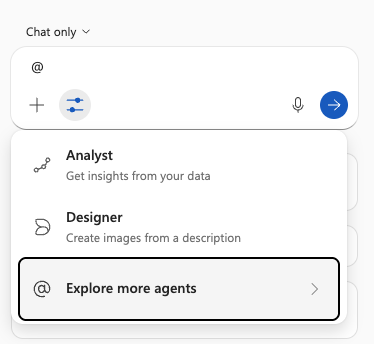
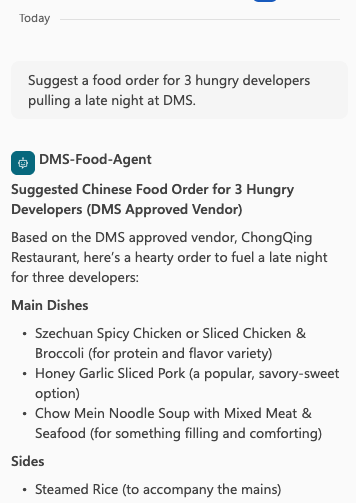
Depending on how your organization’s M365 tenant is setup, this may appear underwhelmingly empty. We can confirm that with some minimal configuration, and administrative oversight, it is possible to surface custom Copilot Studio agents that you have created inside this dialog. For the purposes of demonstration, we created a food ordering agent that can suggest menu items from our favourite local food places:
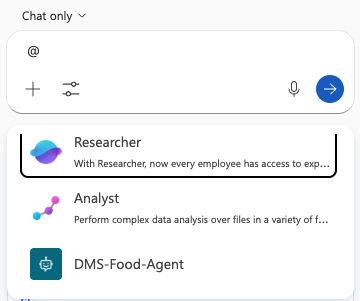
Above – selecting our custom agent, below interacting with it inside Word.
Limitations
This is useful but you will notice when working directly with one of your own agents, the ability for you to allow editing by the agent is removed. This is by design. Microsoft enforces that only internal Microsoft Copilot Word Agent can directly edit document inside Word. That’s a shame. This is an understandably safe stance to take, but it does mean that interactions with your own agents are limited to this chat box or outside of Word altogether. As soon as you select “Allow Editing” from the Copilot interface, your Agent will be switched out and the M365 Copilot is back in charge:
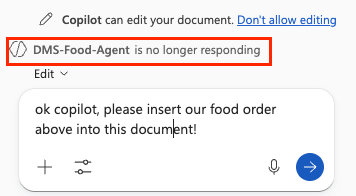
Using M365 Copilot’s agent it is possible to get it to insert the text into your document. As shown in our demonstration document here:
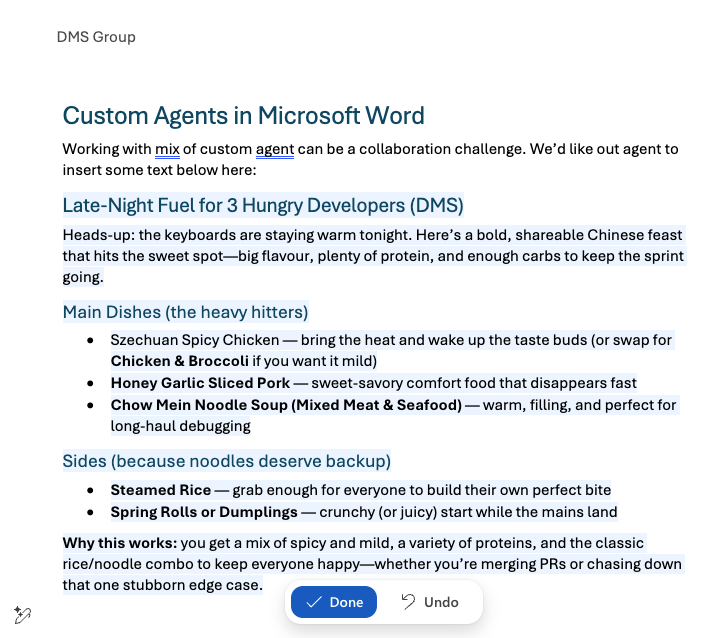
At that point you can accept the insertions, discard or update prompts to copilot. For many this may be sufficient. We think the ultimate dream is to have your custom agents participate in collaborative authoring alongside you like another colleague. For now Microsoft ensures that only its first party agents can conduct editing of documents. Other agents acting within Word must do so under the auspices of M365 Copilot.
Making it yours…
Hopefully this brief tour gives you some ideas. Utilizing custom AI Agents in Microsoft Word is possible albeit with some limitations and tricks to setup. Of course the above agent interaction is just a public demonstration. For your own client agents you will want something closely aligned to your own work. Perhaps getting an Agent that can pull highly specific data and text input from your own custom backend systems. At DMS Group we are helping other clients to do just this via Copilot Studio Agents. If we can assist your organization to get more out of adopting AI agents, reach out.

Be the first to comment